The best AI video dubbing tool depends on whether you need the speaker’s mouth to match the new language. For talking-head videos where viewers watch the face, pick a tool with voice cloning and lip sync, such as HeyGen, Rask AI, Kapwing or ChatCut. If the speaker is mostly off screen, a voice-only dub from ElevenLabs or YouTube’s free auto-dubbing is enough. Whatever you choose, use a tool that lets you edit the translation before it renders, because that’s where most mistakes get fixed.
ChatCut makes one of the tools on this list. On November 26, 2026 we dubbed a 40-second English talking-head clip into Latin American Spanish with lip sync and show the result below. Facts about the other tools come from their own pricing pages and help centers, checked on November 25, 2026. We didn’t upload our footage to them, so we don’t rate their voices.
Key takeaways
- Voice cloning keeps the speaker sounding like themselves; lip sync redraws the mouth to match the new words. Lip sync matters for faces on camera and costs more.
- Review the translated script before you generate. In our test the draft carried over filler words and misspelled a product name; we fixed both in under a minute.
- Expect the dubbed video to change length slightly. Ours came out 1.4 seconds shorter than the original because we let the tool adjust pacing.
- Prices are usually per minute of source video. Our 40-second test cost 2.6 ChatCut credits with lip sync, about $0.65 at face value.
How do the best AI video dubbing tools compare?
| Tool | Best for | Keeps the speaker’s voice | Lip sync | Edit translation first | Free option | Paid from |
|---|---|---|---|---|---|---|
| ChatCut | Dubbing inside an editor | Yes | Optional | Yes | Depends on plan | $25/month |
| HeyGen | Talking-head videos | Yes | Yes | Yes (Pro) | 3 videos/month, 1 min each | $29/month ($24 yearly) |
| ElevenLabs | Voice quality, several speakers | Yes | Not in dubbing docs | Yes | Not documented | Per source minute |
| Rask AI | Many languages at scale | Yes | Creator Pro and up | Yes | Free trial | By plan and minutes |
| Synthesia | Company training videos | Not documented | Not documented | Yes | Free translator page | See pricing |
| Kapwing | Dubbing and subtitles in a browser | Yes | Pro and Business | Yes | Under 8 min, watermark | $24/month ($16 yearly) |
| Descript | Podcasts and courses | Voice clones | Yes | Yes | Limited | $24/month ($16 yearly) |
| VEED | Proofreading before you dub | Dubbing Pro (API) | Optional | Yes | One try | Plans with dubbing hours |
| Captions | Phone-first creators | With Lipdub | With Lipdub | Not documented | Basic dubbing | $24.99/month |
| YouTube auto-dubbing | Videos that live on YouTube | Some languages | No | No | Free | Free |
| CapCut | Short videos in CapCut | Keeps tone | Optional | Subtitles only | Free online, 5 min | Varies by region |
Do you need lip sync?
Voice-only dubbing replaces the speech and leaves the picture alone. It’s cheaper, it never distorts the face, and it works well for screen recordings, B-roll-heavy videos and anything where the speaker is small or off screen.
Lip-sync dubbing also redraws the mouth so it matches the new language. Use it when a face fills the frame, as in talking-head videos, ads and course intros, because viewers notice when lips and words don’t match. It works best on front-facing, well-lit shots without hands or microphones covering the mouth.
If you only need viewers to read along, translated subtitles are cheaper still; see our list of AI subtitle generators.
What happened when we dubbed a clip into Spanish?
We used a 40-second unscripted clip of one presenter talking to camera, with filler words, a false start and product names (ChatGPT, Premiere, Final Cut Pro, ChatCut). In ChatCut Desktop we asked for a Latin American Spanish translation with lip sync.
- Draft. ChatCut prepared a Spanish script in about four minutes. Preparing and editing the draft cost nothing.
- Review. The draft translated the speaker’s “um” and “uh” as “eh, eh” and wrote our product name as “Chatcut”. It also translated “ChatGPT desktop” word for word as “tu escritorio de ChatGPT”. We removed the fillers, fixed the name and changed that phrase to “la app de escritorio de ChatGPT” (the ChatGPT desktop app), keeping the rest.
- Quote and generate. The quote was 1.83 credits for a voice-only dub or 2.6 credits with lip sync. We chose lip sync; the job finished in about two minutes and was charged exactly 2.6 credits.
- Check. The result kept the original 1080p resolution and frame rate and came out at 38.6 seconds against the original 40.0. It also carried a Spanish subtitle track matching our edited script word for word.
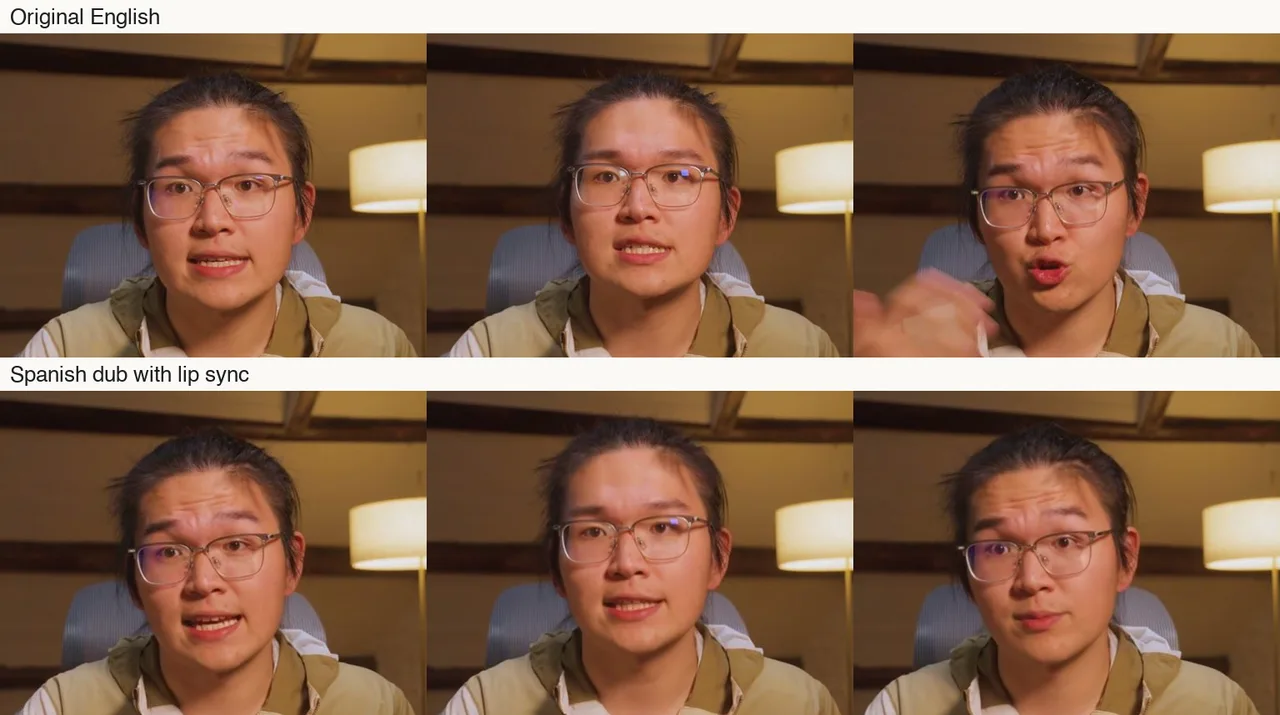
In the frames we checked, the redrawn mouths looked natural, with no blur or doubled teeth. This was the easy case: one person facing the camera in steady light. Listen to the excerpt below to judge the voice yourself; we can’t score voice similarity objectively.
1. ChatCut: best for dubbing inside an editor
ChatCut is an AI video editor for the web, macOS and Windows. Its video translation dubs the speech in the original speaker’s voice, can sync the mouth, and returns a new video in the media pool next to your source, so you can cut, caption and export it like any other clip (AI Video Translation).
Best for: creators who translate finished edits and want to keep editing the dubbed version.
What we ran: the Spanish test above, with lip sync, for 2.6 credits.
Pros
- You review and edit the source transcript and the translation before anything is charged, and the quote shows both the voice-only and lip-sync price.
- The language list covers more than 180 languages and regional variants, from Spanish (Mexico) to Arabic (Egypt).
- The dubbed clip lands on an editable timeline, where you can add translated captions or replace a line with new voiceover.
Cons
- The whole source video is processed and billed, so trim the section you want first.
- Depending on your plan, video translation may need an upgrade, and lip sync re-renders the picture, so codec and bitrate can change.
Price: Free plan; paid plans from $25/month (100 credits) or $252/year. Our 40-second lip-sync dub cost 2.6 credits (Product Facts).
2. HeyGen: best for talking-head videos
HeyGen translates a video in the speaker’s own voice and syncs the lips, with 175+ languages and dialects on paid plans.
Best for: marketing, course and talking-head videos where the face is the focus.
Pros
- Voice cloning and lip sync are its core features, not add-ons.
- Pro plans let you edit the translated script before rendering (HeyGen FAQ).
Cons
- The free tier allows 3 videos a month, each up to 1 minute.
- Billing is in credits, with no separate per-minute price for translation.
Price: Creator $29/month, or $24/month billed yearly (HeyGen pricing).
3. ElevenLabs: best for voice quality
ElevenLabs Dubbing translates video or audio into 90+ languages while keeping each speaker’s emotion, timing and tone.
Best for: localization teams where the voice matters most, including videos with several speakers.
Pros
- Separates and clones multiple speakers in one file.
- You can edit the translation and regenerate only the changed segments (ElevenLabs API guide).
Cons
- Its dubbing docs don’t cover changing mouth movement, so plan on voice-only results.
- Pricing is per source minute per target language, so several languages multiply the cost.
Price: charged per source minute and target language (ElevenLabs pricing).
4. Rask AI: best for many languages at scale
Rask AI dubs into 135+ languages with cloned voices and lets you edit the transcript before applying the result.
Best for: content teams translating a library of videos into several languages.
Pros
- Lip sync after dubbing on Creator Pro and higher plans (Rask help).
- Downloads the dubbed video, the audio and an SRT file.
Cons
- Lip sync uses extra minutes; Rask’s own example counts 1 minute of translation with enhanced lip sync as 4 minutes.
- Exact plan prices vary by region on its pricing page.
Price: plans with monthly minutes; free trial available (Rask pricing).
5. Synthesia: best for company training videos
Synthesia’s Video Translator translates videos into 140+ languages, and its editor can export and re-import text as XLIFF files for translation teams.
Best for: companies localizing training and internal videos.
Pros
- Works with professional translation workflows through XLIFF (Synthesia help).
- Built for teams that already make avatar videos in Synthesia.
Cons
- Its translation pages don’t say whether the original voice is kept or whether lips are synced for uploaded videos.
- Pricing for dubbing isn’t listed per minute.
Price: see Synthesia pricing.
6. Kapwing: best for dubbing and subtitles in a browser
Kapwing dubs videos with cloned voices, lets you edit the transcript and translation, and exports the dubbed MP4, an MP3 or translated subtitles.
Best for: marketing teams that want dubbing, subtitles and editing in one browser tab.
Pros
- Apply changes or regenerate the dubbed audio after editing the translation (Kapwing FAQ).
- Exports SRT, a captioned video, MP3 or MP4.
Cons
- Lip sync is limited to Pro and Business plans.
- Free uploads must be under 8 minutes, and exports carry a watermark.
Price: Pro $24/month, or $16/month billed yearly; dubbing uses plan minutes (Kapwing pricing).
7. Descript: best for podcasts and courses
Descript translates and dubs into 30 languages, with proofreading and timing adjustments before you export each language version.
Best for: podcasters and course creators who already edit by transcript.
Pros
- Proofread the translation and adjust timing in the same text editor you cut with.
- Lip sync for translated videos (Descript features).
Cons
- Fewer dubbing languages than HeyGen, Rask or Kapwing.
- The free plan’s translation allowance is limited, and the plan that includes dubbing isn’t spelled out.
Price: Hobbyist $24/month, or $16/month billed yearly (Descript pricing).
8. VEED: best for proofreading before you dub
VEED’s AI Dubbing translates into 70+ languages with an optional lip sync, and its Proofread step lets you edit the translation before it’s voiced.
Best for: creators who want dubbing, subtitles and editing in a browser, plus an API for later.
Pros
- Proofread step before dubbing, and optional lip sync.
- A separate Dubbing Pro API clones each speaker’s voice and returns a lip-synced video.
Cons
- Free and Creator plans get one try; Pro includes 6 hours of dubbing a year and Studio 12.
- The web tool’s default voice behavior isn’t documented.
Price: dubbing hours come with paid plans; the Dubbing Pro API is $0.18 per second (VEED API).
9. Captions: best for phone-first creators
Captions offers AI dubbing in 30+ languages and Lipdub, which clones the voice and matches the mouth frame by frame.
Best for: short-form creators who film and post from a phone.
Pros
- Works on iOS, Android and the web.
- Lipdub keeps the speaker’s tone, energy and cadence.
Cons
- Basic dubbing uses a generated voice; voice cloning comes with Lipdub on paid plans.
- Editing the translation before rendering isn’t documented.
Price: Max $24.99/month (Captions pricing).
10. YouTube auto-dubbing: best free option for YouTube videos
YouTube can add automatic dubs as extra audio tracks on eligible channels, so viewers pick their language in the player.
Best for: creators who publish only on YouTube and don’t want to manage separate video files.
Pros
- Free, and the dubs live on the same video, so views and comments stay in one place.
- Expressive speech in some languages copies the original pitch and tone.
Cons
- You can’t edit the automatic dub; fixing the original-language captions regenerates it.
- No lip sync, the dubs play only on YouTube, and videos over 120 minutes may not be eligible.
Price: free.
11. CapCut: best if you already edit in CapCut
CapCut’s video translator translates speech and subtitles, keeps the original sound and tone, and can adjust mouth shapes.
Best for: short-form creators who already cut in CapCut on web, desktop or mobile.
Pros
- Available on web, desktop and mobile, with an optional lip sync.
- Translated subtitles can be styled and animated like any CapCut text.
Cons
- The free online translator handles videos up to 5 minutes.
- CapCut doesn’t publish a dubbing language count or a per-minute price.
Price: free online tool; Pro pricing varies by region.
Which AI dubbing tool should you choose?
- Talking-head videos and ads: HeyGen, Rask AI or Kapwing with lip sync.
- The voice matters most, or there are several speakers: ElevenLabs.
- Company training in many languages: Synthesia or Rask AI.
- Podcasts and courses: Descript.
- YouTube-only channels: YouTube auto-dubbing first, then a paid tool for videos where it falls short.
- Phone-first short videos: Captions or CapCut.
- You keep editing after dubbing: ChatCut. Want to skip the learning curve? Describe the translation you want in ChatCut, then review the script before it renders.
Also considered
- Dubverse and Camb.ai: dubbing platforms that other rankings include; we didn’t review them for this list.
- Translating by hand with voiceover: for a short script you can translate the text yourself and generate narration; see how to translate a video.
- Subtitles only: if viewers can read along, an AI subtitle generator is cheaper and keeps the original voice.