The best AI subtitle generator depends on what you need at the end: a subtitle file, or captions drawn into the video. For a clean SRT or VTT file, Descript, Kapwing, HappyScribe and Sonix are strong picks. For animated word-by-word captions on Shorts and Reels, look at Submagic, Captions or CapCut. If you want captions you can keep restyling on a real editing timeline, use ChatCut. If your video only lives on YouTube, start with YouTube’s free automatic captions.
ChatCut makes one of the tools on this list. On November 26, 2026 we captioned the same 40-second talking-head clip in our desktop app and with OpenAI’s open-source Whisper model, and we show both results below. Facts about the other tools come from their own pricing pages and help centers, checked on November 25, 2026. We didn’t upload our footage to them, so we don’t score their accuracy.
Key takeaways
- Decide first between a subtitle file (SRT or VTT that viewers switch on) and burned-in captions (drawn into the picture). Most tools do both, but each is better at one.
- Every AI subtitle generator mishears some words. In our test the two transcripts disagreed in two places, so read your captions against the audio once before you publish.
- Free plans usually add a watermark to the video export or limit minutes. ChatCut’s Free plan exports captioned video without a watermark, and YouTube’s captions are free but live only on YouTube.
- Caption length matters as much as accuracy. ChatCut split our clip into 18 short captions; Whisper’s raw file had 7 lines of up to 9 seconds each, too long to read on screen without re-splitting.
How do the best AI subtitle generators compare?
| Tool | Best for | Captions in the video | Subtitle files | Free option | Paid from |
|---|---|---|---|---|---|
| ChatCut | Captions you keep editing on a timeline | Yes, 49 styles incl. animated | SRT, TXT | Free plan, no watermark | $25/month |
| Submagic | Animated captions for Shorts and Reels | Yes, 37 styles | SRT | No free plan listed | $19/month |
| VEED | All-round browser editing | Yes | SRT, VTT, TXT (paid) | Free with watermark | Per seat, see pricing |
| Descript | Podcasts and long videos | Yes | SRT, VTT | 1 hour a month | $24/month ($16 yearly) |
| Kapwing | Subtitle files in a browser | Yes | SRT, VTT, TXT | Free with watermark | $24/month ($16 yearly) |
| CapCut | People already editing in CapCut | Yes | SRT, TXT | Basic auto captions | Varies by region |
| Captions | Phone-first creators | Yes | SRT | 1 template | $24.99/month |
| HappyScribe | Many languages, optional human proofreading | Yes | SRT; VTT on Pro | 10 minutes | $17/month ($8.50 yearly) |
| Rev | Accuracy and broadcast rules | Yes (add-on) | SRT, WebVTT and more | Not listed | Per minute |
| Sonix | Control over line breaks | Yes | SRT, VTT | 30 minutes | $10/hour or $25/month |
| YouTube | Videos that live on YouTube | No, viewers switch them on | Not documented | Free | Free |
Do you need a subtitle file or burned-in captions?
A subtitle file (SRT or VTT) sits next to the video. YouTube, Vimeo and most players let viewers turn it on or off, search engines can read it, and you can fix a typo without exporting the video again. A burned-in caption is part of the picture. It always shows, it can be styled and animated, and it’s what most people want on TikTok, Reels and Shorts, where many viewers watch with the sound off.
SRT is the most widely accepted subtitle format. VTT (WebVTT) is the web format browsers use; it can carry basic styling and positioning. If you’re unsure, export SRT. For a step-by-step walkthrough in specific editors, see our guide to adding subtitles to a video.
What did we find when we captioned the same clip twice?
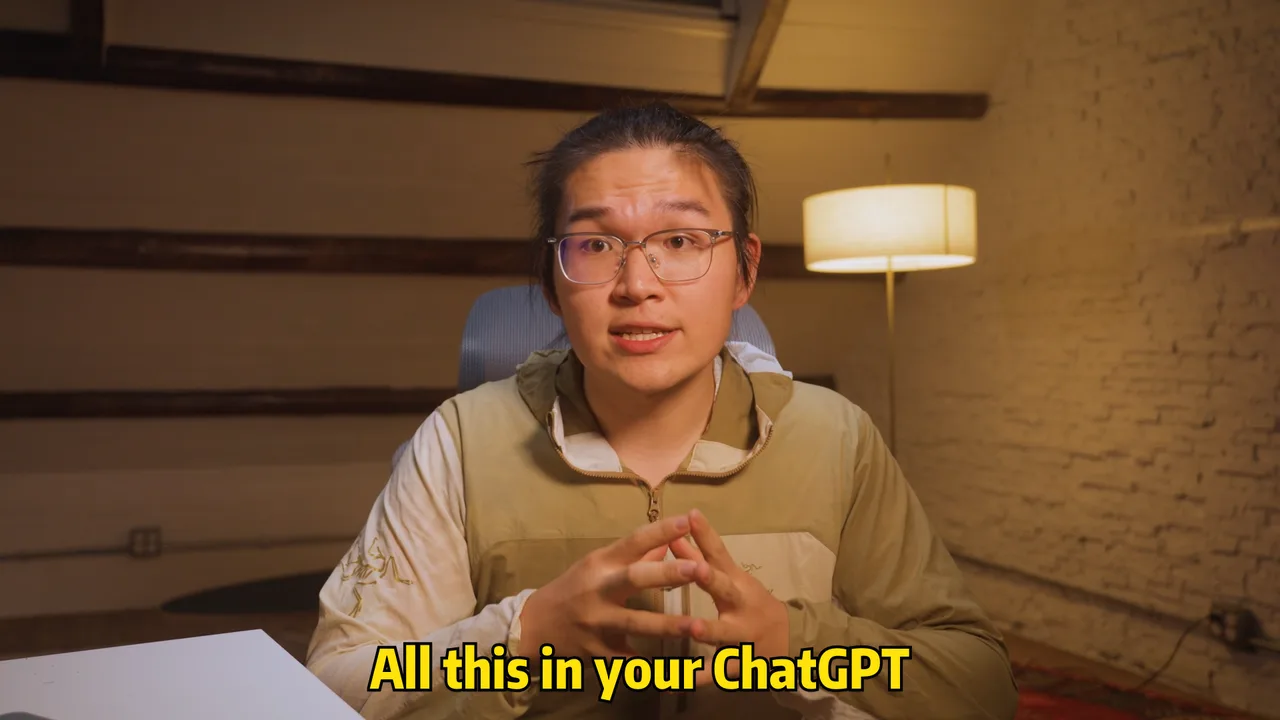
We used an unscripted 40-second clip of one presenter talking to camera. It has filler words (“um”, “uh”), a false start, repeated phrases and product names such as ChatGPT, Premiere and Final Cut Pro, which is what real talking-head footage sounds like.
In ChatCut Desktop (our app) we added the clip to a timeline, turned captions on, applied the built-in Yellow Outline style and exported an SRT file and the captioned video. Transcription, the style and the local exports cost 0 credits. For comparison we ran the same audio through Whisper (OpenAI’s open-source model, the small English version, run locally with whisper.cpp), which many free caption tools are built on.
| Desktop app | Whisper (small, local) | |
|---|---|---|
| Caption lines | 18 | 7 |
| Longest line on screen | 2.8 seconds, 38 characters | 9.3 seconds, 86 characters |
| Filler words and false starts | Kept as spoken (“um, uh”, “AI motion gra, uh”) | Mostly dropped |
| ”ChatGPT” | ChatGPT | chat GPT |
| Where they disagreed | ”desktop”, “AI editing assets, generation" | "dashboard”, “AI editing, access generation” |
| Styled captions in the video | Yes, from the timeline | No, file only |
What this shows:
- Short lines are ready to watch. The timeline captions averaged under 2 seconds each, so they fit on one line. Whisper’s raw segments read like paragraphs; you’d have to split them before burning them in.
- Verbatim isn’t always what you want on screen. The timeline captions kept the “um” and the false start, which helps when you’re cutting the speech, but you’ll want to remove them before publishing. You can delete them in the Transcript panel, which also cuts them from the video, or edit the caption text only.
- Both need a read-through. The two transcripts disagreed on two phrases. They also agreed on one mistake: both wrote “checkout” where, judging from context and the dubbing service we tried later, the speaker said our product name. Whatever tool you use, proofread names and numbers.
1. ChatCut: best for captions you keep editing on a timeline
ChatCut is an AI video editor for the web, macOS and Windows. It transcribes speech into word-timed captions on a multi-track timeline, where you can edit words, restyle the whole track or ask its agent to do it. The Add captions Skill lets you pick one of 49 built-in styles, fixed or animated, and apply it in one step (Add Captions).
Best for: creators who edit the video and the captions together and want to change the style later without starting over.
What we ran: the test above. Captions were ready to style as soon as transcription finished, and exporting the SRT took one step.
Pros
- Transcription, applying a built-in style, manual caption edits and local exports don’t use credits (Credits).
- Deleting words in the transcript also cuts them from the video, so cleanup and captions happen in one place (Transcript and Captions).
- No watermark, including on the Free plan. Captions can be translated into a separate track that you style and export on its own.
Cons
- Subtitle export is SRT or plain text; there’s no VTT option.
- Animated styles need Desktop 0.8.7 or later, and the Desktop app doesn’t run on Linux.
Price: Free plan; paid plans from $25/month (100 credits) or $252/year (Product Facts).
2. Submagic: best for animated word-by-word captions
Submagic is a web app built around short-form captions. It generates captions word by word and offers 37 caption styles with control over font, color, size, position and words per line.
Best for: TikTok, Reels and Shorts creators who want captions that move with each word.
Pros
- Styles are designed for vertical video, with word-level highlighting.
- Supports 120+ languages and dialects (Submagic help).
Cons
- Its pricing page doesn’t list a full free plan. Starter caps clips at 2 minutes and 15 videos a month.
- Built for short clips, not long videos or subtitle-file workflows.
Price: Starter from $19/month (Submagic pricing).
3. VEED: best all-round browser editor
VEED is a browser video editor with automatic subtitles in 125+ languages. You upload a video, choose Subtitles → Auto-subtitle, then style, translate and export.
Best for: marketing teams and creators who want subtitles, translation and light editing in one browser tab.
Pros
- Exports SRT, VTT and TXT, and can burn styled subtitles into the video (VEED help).
- Styling covers font, size, color, background, animation and spacing.
Cons
- Free exports carry a watermark, and subtitle file downloads are a paid feature.
- Paid plans are priced per seat, and subtitle generation has a 50-hour monthly fair-use cap.
Price: free with watermark; paid plans per seat (VEED pricing).
4. Descript: best for podcasts and long videos
Descript transcribes your recording and lets you edit the video by editing the text. Subtitles come from that transcript, in 22+ languages.
Best for: podcasters and interview editors who already cut by transcript.
Pros
- Exports SRT or VTT from Publish → Export → Subtitles.
- Speaker labels and line limits help with multi-person recordings.
Cons
- Fewer transcription languages than VEED or HappyScribe.
- The free plan’s subtitle allowance is 1 hour of audio a month.
Price: Hobbyist $24/month, or $16/month billed yearly; web, Mac and Windows (Descript pricing).
5. Kapwing: best for subtitle files in a browser
Kapwing’s Subtitler generates editable subtitles from an uploaded video or audio file and translates them into 100+ languages.
Best for: teams that proofread subtitles in the browser and need both a file and a captioned MP4.
Pros
- Downloads SRT, VTT and TXT, or exports an MP4 with captions burned in.
- Runs in the browser, so it works on Linux too.
Cons
- Free exports carry a watermark and caption minutes are limited.
- The full list of caption animations isn’t documented.
Price: Pro $24/month, or $16/month billed yearly (Kapwing pricing).
6. CapCut: best if you already edit in CapCut
CapCut has automatic captions on the web, desktop and mobile apps. Captions land on the timeline as text you can style and animate.
Best for: short-form creators who already cut their videos in CapCut.
Pros
- Available on web, Windows, macOS, iOS and Android.
- Speaker identification on desktop in some regions.
Cons
- Some caption features can trigger a Pro upgrade, and prices vary by region.
- SRT and TXT export is documented for desktop and mobile; VTT isn’t mentioned (CapCut help).
Price: basic auto captions are free; Pro pricing depends on region and platform.
7. Captions: best for phone-first creators
Captions is a mobile-first editor that generates a caption track as soon as you import a video, with support for 100+ languages.
Best for: creators who film and post from their phone and want templates.
Pros
- 100+ caption templates on paid plans, and SRT export per language.
- Captions are burned in on export.
Cons
- The free plan has 1 caption template and no AI credits.
- Its pricing page lists iOS plans; web and Android features may differ.
Price: Max $24.99/month (Captions pricing).
8. HappyScribe: best for many languages
HappyScribe generates subtitles in 150+ languages and dialects and offers human proofreading when you need it.
Best for: media teams and businesses that subtitle in many languages.
Pros
- The widest language coverage on this list.
- SRT on every plan, VTT from Pro, and MP4 with burned-in subtitles.
Cons
- The free trial is 10 minutes, and free MP4 exports are watermarked.
- It’s a subtitle tool, not a video editor.
Price: Basic $17/month, or $8.50/month billed yearly (HappyScribe pricing).
9. Rev: best for accuracy and broadcast rules
Rev offers AI captions in up to 37 languages and human captioning when accuracy or compliance matters.
Best for: legal, education and media teams that need human-checked captions or broadcast formats.
Pros
- Human captioning is available on top of AI.
- Delivers SRT, WebVTT and other broadcast formats.
Cons
- Priced per minute rather than by subscription, so long videos add up.
- Burned-in captions are a $0.30-per-minute add-on (Rev help).
Price: per minute; translated Global Subtitles start at $6.49/minute (Rev pricing).
10. Sonix: best for control over line breaks
Sonix transcribes 54+ languages and builds subtitles from the transcript, with presets for line length, characters per line and reading speed.
Best for: podcasters and researchers who want tidy subtitle files.
Pros
- Subtitle presets include single line, by sentence and per word.
- Exports SRT and VTT and can burn subtitles in.
Cons
- Caption animation isn’t documented.
- Monthly plans include a fixed number of hours; extra hours cost $10 each.
Price: pay as you go at $10/hour, or Core at $25/month (5 hours) (Sonix pricing).
11. YouTube automatic captions: best free option for YouTube videos
YouTube creates captions with speech recognition after you upload, in 60+ languages and variants.
Best for: channels that publish only on YouTube and will review captions in YouTube Studio.
Pros
- Free, with nothing to install.
- English captions can show emphasis and sounds such as sighs.
Cons
- Captions are a track viewers switch on, not part of the picture, so you can’t style them for Shorts.
- Captions may not be generated for long videos, poor audio or overlapping speakers.
Price: free.
Which AI subtitle generator should you choose?
- You post Shorts, Reels or TikToks: Submagic, Captions or CapCut for animated captions.
- You edit podcasts or interviews: Descript, or an editor with a multi-track timeline if you also add B-roll and music.
- You need SRT or VTT files for a player or client: Kapwing, Sonix or HappyScribe.
- You subtitle in many languages: HappyScribe or VEED.
- You need human-checked captions: Rev.
- You only publish on YouTube: YouTube’s automatic captions, then fix names in YouTube Studio.
- You want captions you can restyle later: ChatCut. Want to skip the learning curve? Describe the captions you want in ChatCut, then adjust them on the timeline.
Also considered
- Maestra: subtitles, translation and live captions for teams; subtitle plans start at $49/month.
- Whisper: free and open source, and what we compared against above. It runs on your computer and writes SRT files, but you’ll need the command line and you’ll have to split long lines yourself.
- Built-in speech-to-text in editors: DaVinci Resolve and Premiere Pro can generate subtitles too; see how to add subtitles in DaVinci Resolve.
- Translated voiceover instead of subtitles: see our list of AI video dubbing tools.